
Unmodeled Elements

Not everything you need to account for lives in the Revit model. Whatever doesn't gets measured outside Tangible, then added as quantities that behave like any other takeoff data.

How it works

These elements are taken off outside Tangible — from drawing sets, specifications, or your own measurements. You bring in the quantity; Tangible attaches the assembly, so the material breakdown, classification, and carbon data come with it.

Measured outside Tangible doesn't mean untraceable. Each added quantity links back to the PDF drawing it was taken off from, and you can ask the agent where any of it came from.

The Tangible team generally handles this for projects working from 2D drawings. You can also add elements yourself, either in the UI or by asking the agent.
Adding products and assemblies

Allowances, sitework, specialty items, or anything missing from the 3D model — add it directly to your project from the Materials Library.

1

Open the Materials Library

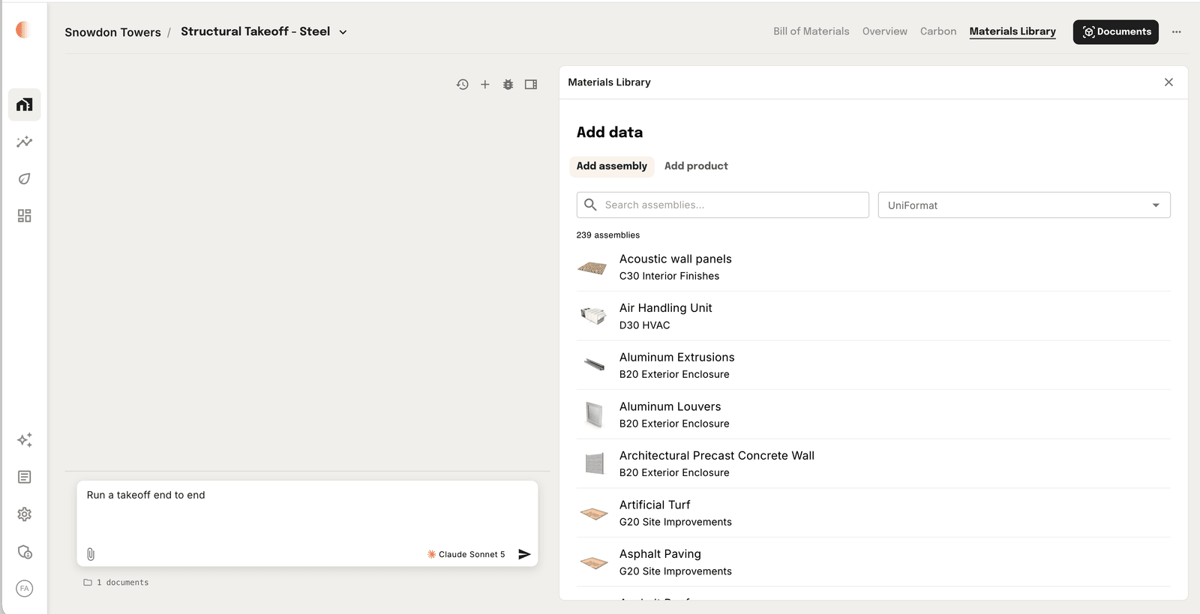
Go to the Materials Library tab, then choose Add assembly or Add product. Search or filter by UniFormat to find what you need.

Materials Library tab open, showing the Add data panel with Add assembly and Add product
2

Enter the quantity and add it

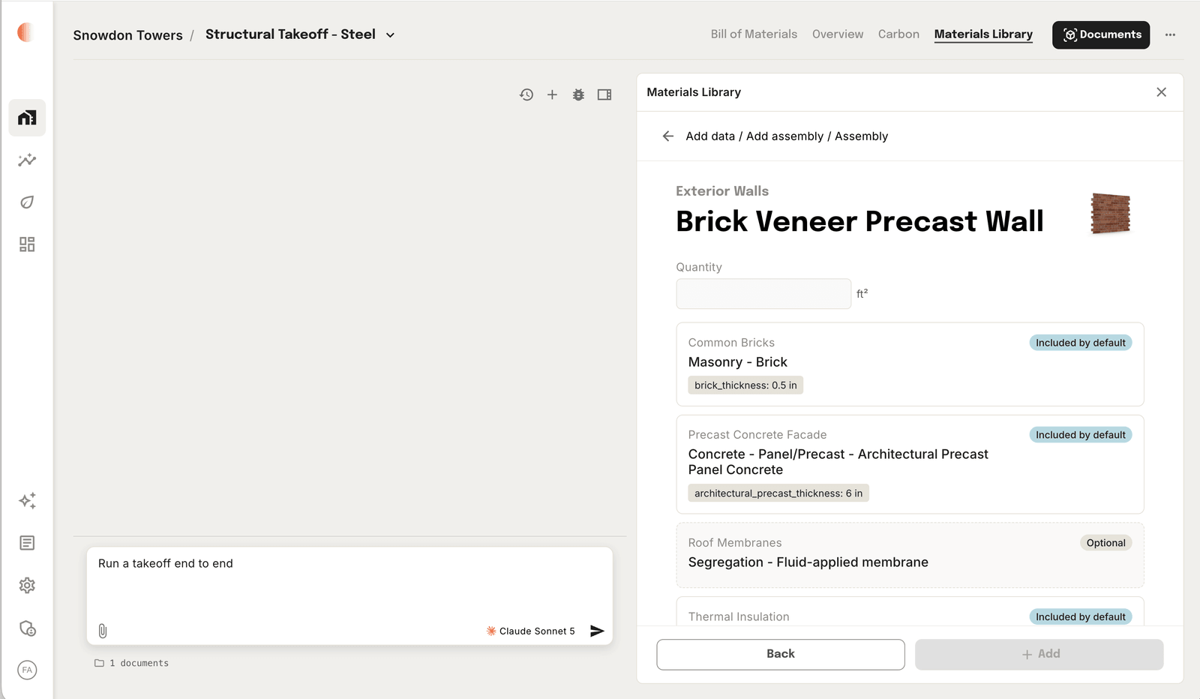
Enter the quantity — area, volume, or count, depending on the assembly. Each layer is marked included by default or optional and carries its own parameters; ask the agent to adjust any of them. Then add it.

Assembly detail showing the quantity field and each material layer marked included by default or optional

Note: Added elements stay separate from takeoff data — the Bill of Materials has a Manual entries view, so you can always tell what came from the model and what was entered by hand.

Adding through the agent

Two ways, depending on how much you're bringing in.

  • Prompt it directly — Ask the agent to add an assembly or product and give it the quantity. It attaches the same assembly you'd pick in the Materials Library.
  • Upload a sheet — Hand the agent a spreadsheet of quantities and assemblies and it works through them in one pass. Faster than adding them one at a time once you have more than a handful.

When you'll use this

  • No model yet — Early design stages, where drawings exist but a model doesn't.
  • Scope outside the model — Sitework, landscape, specialty items, or anything the modeler left out.
  • Allowances — Placeholder quantities for scope that isn't designed yet.

Was this page helpful?