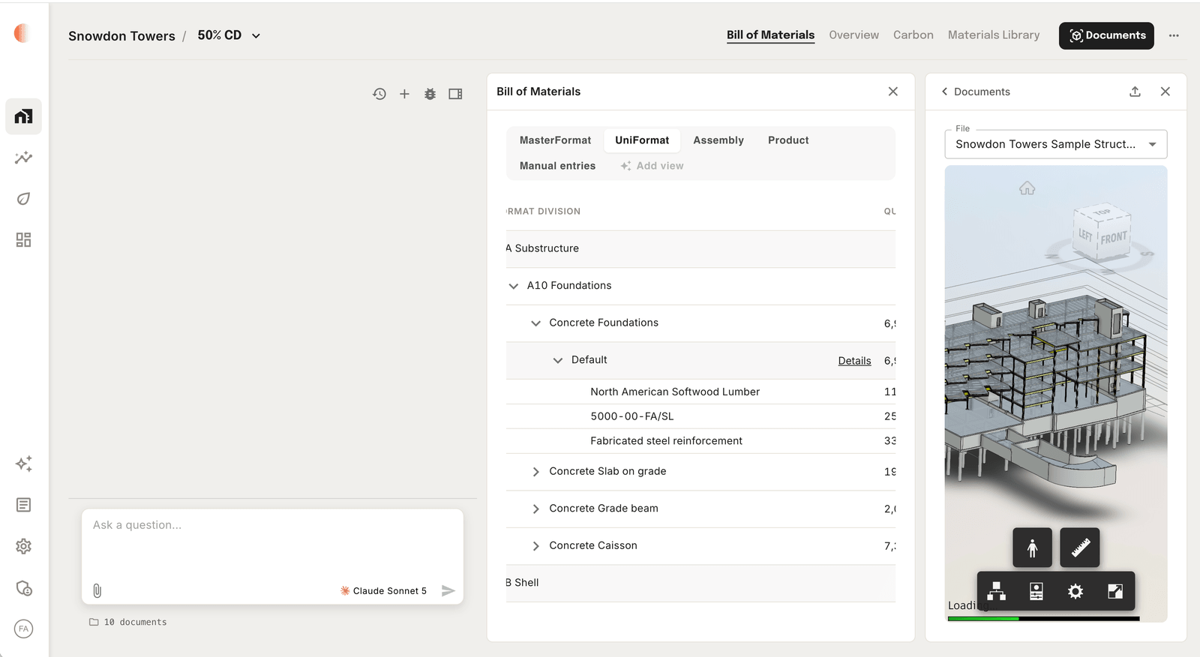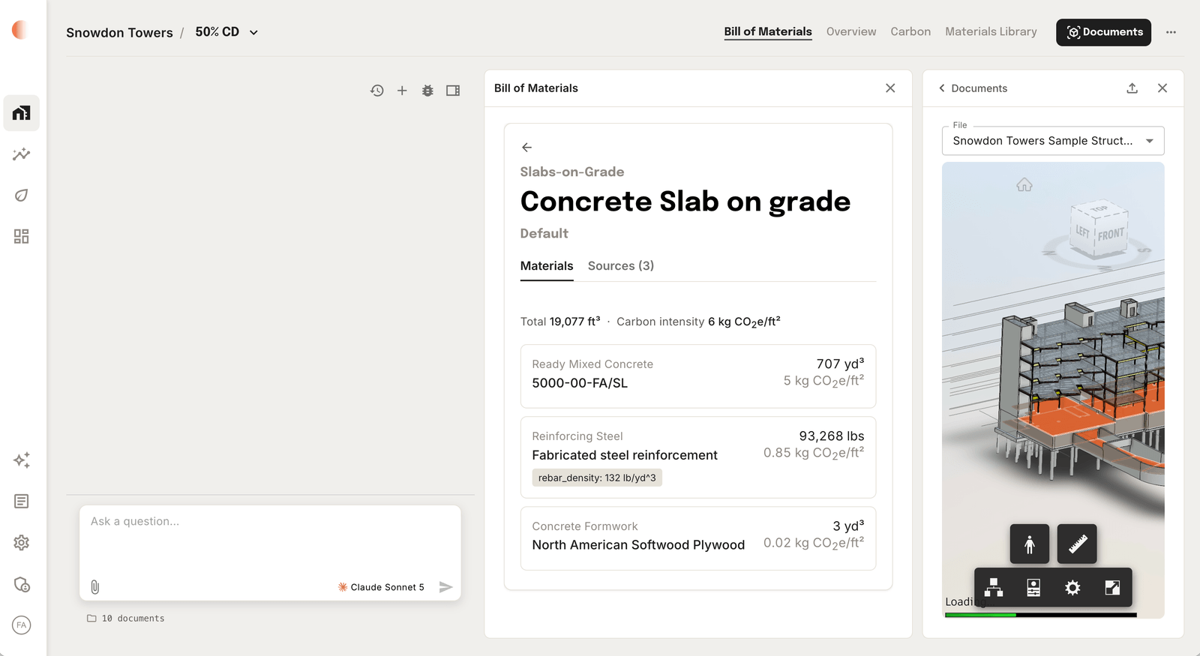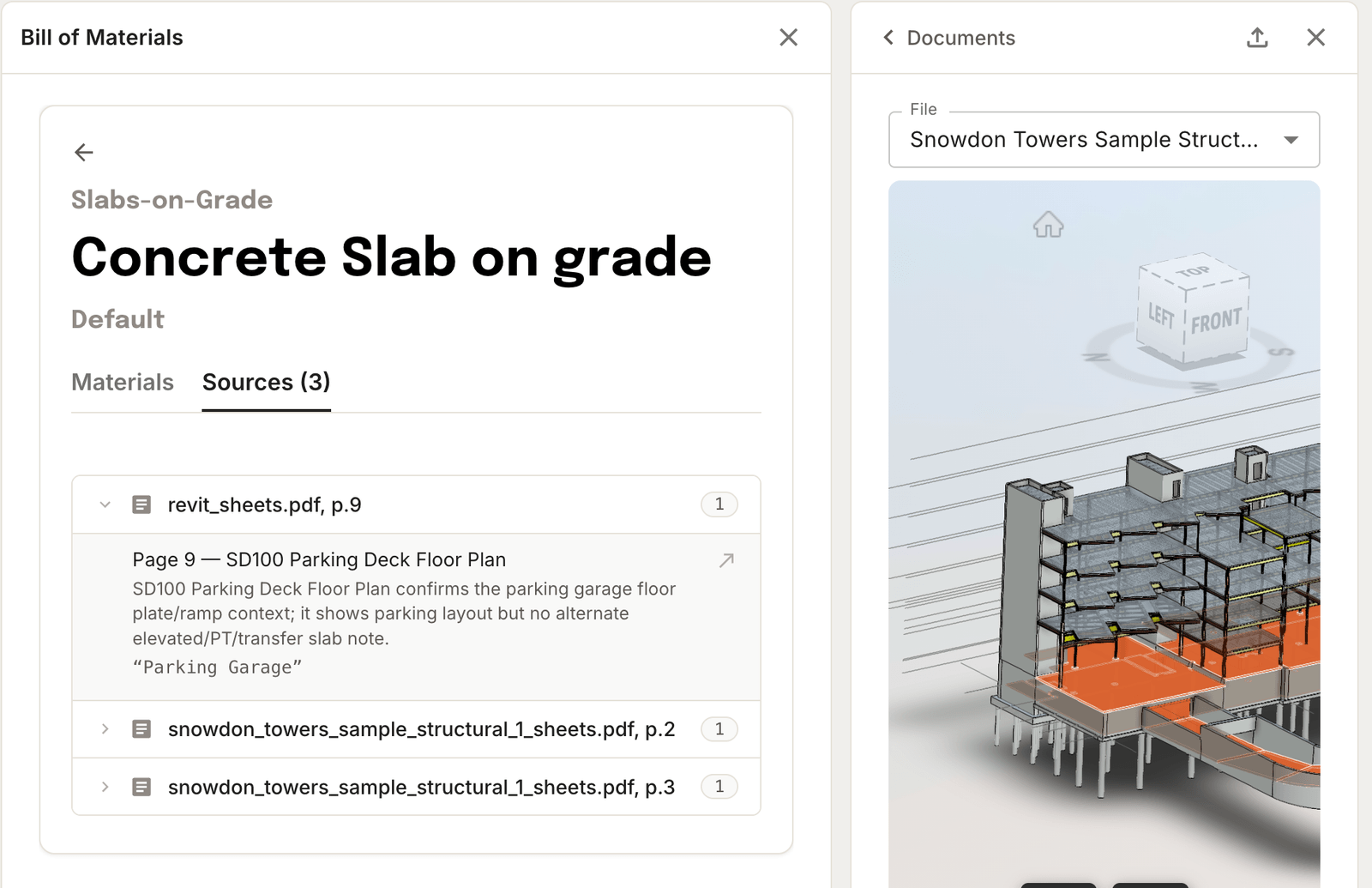
The Bill of Materials is where takeoff results land. Every quantity the agent extracted sits here, and the same data can be organized several ways depending on what you're doing with it.
Choose a view
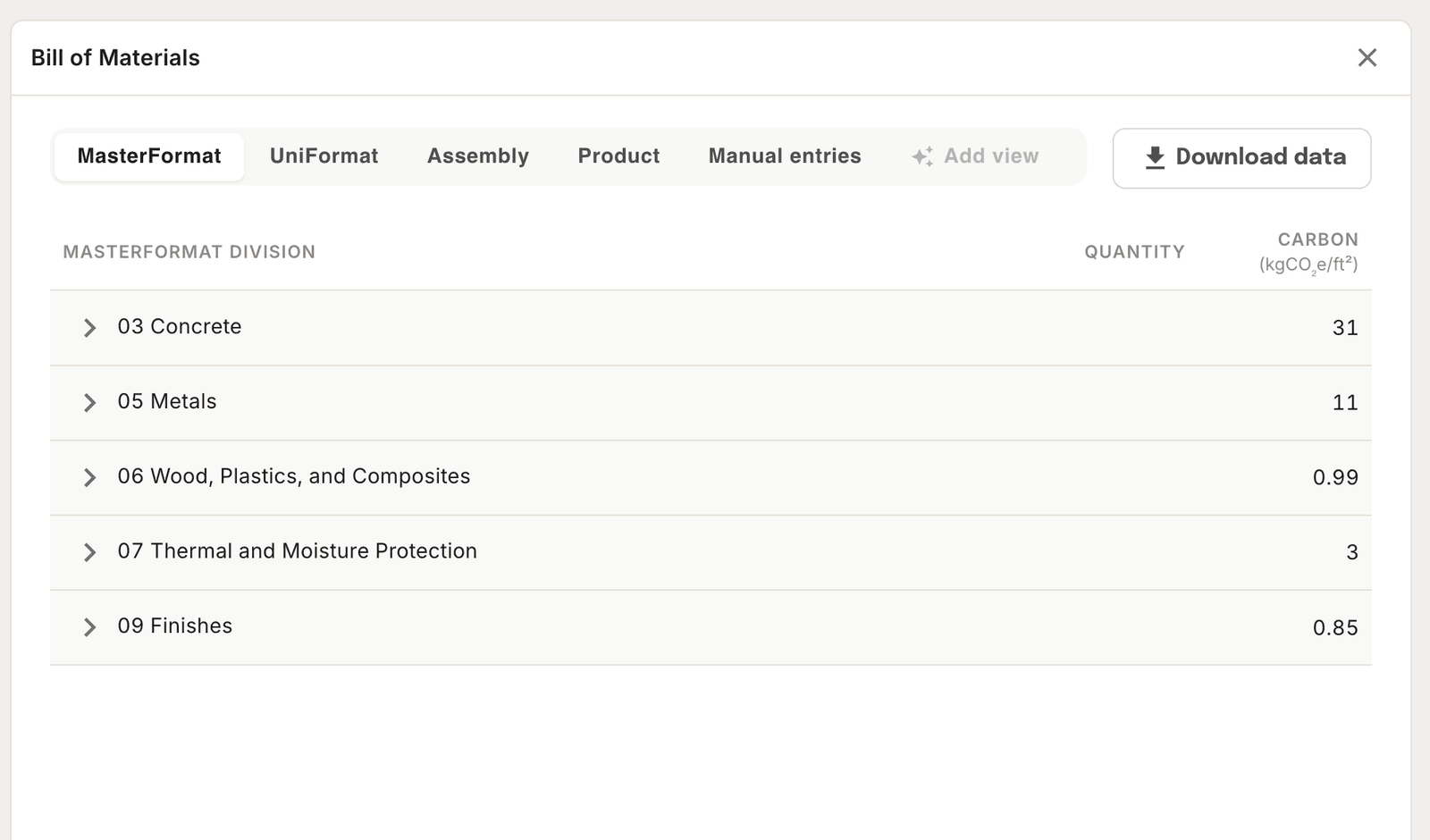
The tabs across the top reorganize the same data — nothing is re-run or re-measured when you switch.
- MasterFormat — By trade division. Best for bid packages.
- UniFormat — By building system. Best for early-stage budgets.
- Assembly — Grouped as the building goes together.
- Product — Grouped by the material itself.
- Manual entries — Only what was added by hand, separate from the takeoff. See Unmodeled Elements.
Drill into an assembly
Each view is a tree. Expand a division to see the groups inside it, then the assemblies inside those, down to the individual configurations carrying quantities.
Working in UniFormat, for example, A Substructure opens to A10 Foundations, which opens to the assemblies beneath it — Concrete Foundations, Concrete Slab on grade, Concrete Grade beam — each with its own quantity.
Below the assembly is a line for each distinct version of it. One wall assembly can cover several real wall types — different thicknesses, different stud spacing, a different product on one layer — and each keeps its own line and quantity rather than being averaged together. Where a project uses only one, it appears as Default.
Open the details
Expand one more level and the materials inside a configuration are listed with their quantities. Details, on the right of the row, opens the full breakdown.