Quickstart Guide

Get from zero to structured material data in a few hours.

Before you begin

  • A Tangible account — request access or ask your admin for an invite link
  • A Revit model (.rvt) and/or PDF drawing set for the project you want to take off
  • A modern browser (Chrome, Edge, or Safari recommended)

Tip: You don't need both a Revit model and PDFs to get started, but uploading both gives the agent more context to work with. See How takeoffs work for details.
1

Create a project

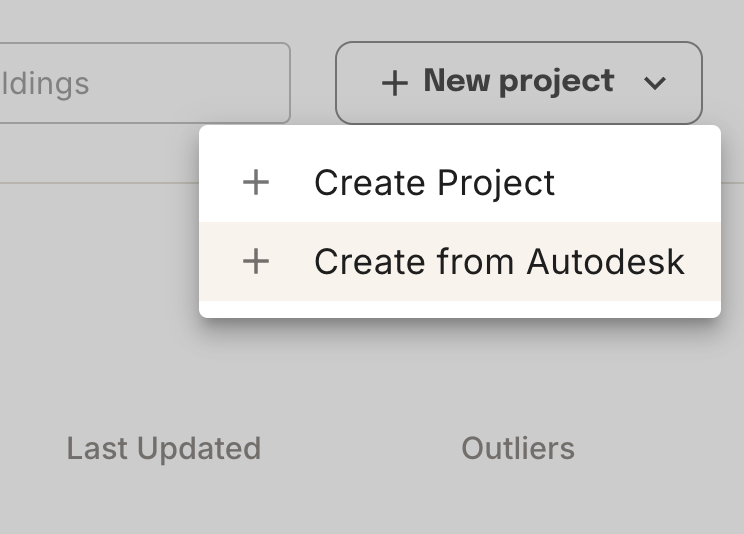
Click New Project and enter the basics: name, location, and construction type. Or connect directly from your Autodesk Construction Cloud account.

Create a project
2

Upload your documents

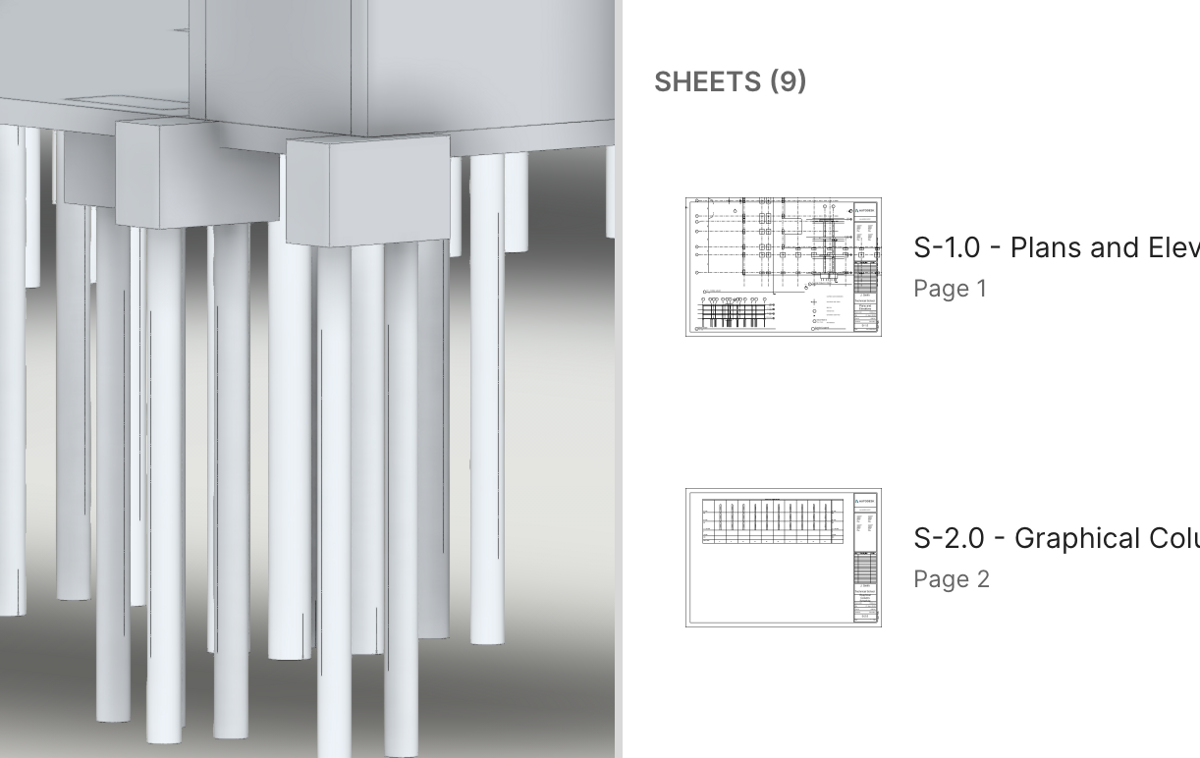
Add Revit models and PDF drawing sets — drag and drop, or sync automatically from ACC. The platform accepts structural, architectural, and site models.

Upload your documents
3

Run takeoffs

The Takeoff Agent reads your 3D model and cross-references PDF drawings for design intent — concrete strengths, wall assemblies, material specs.

Run takeoffs
4

The agent maps your building

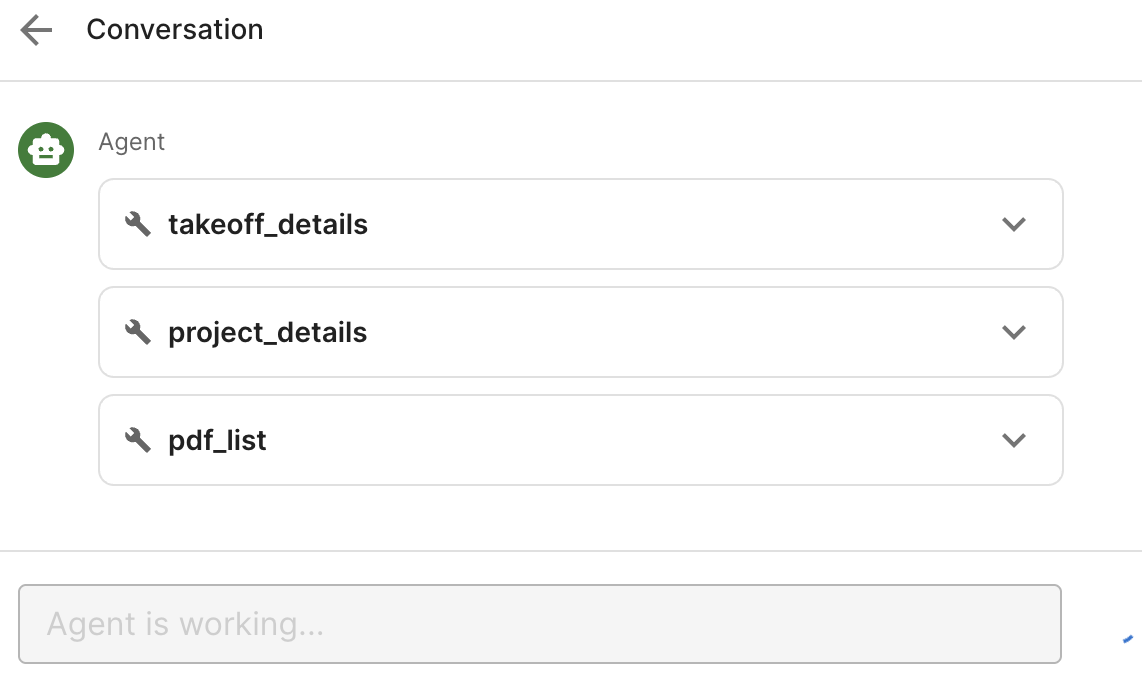
The agent works through each building element one by one, assigning standardized assemblies and extracting quantities. You review key decisions at checkpoints.

The agent maps your building
5

Use the data

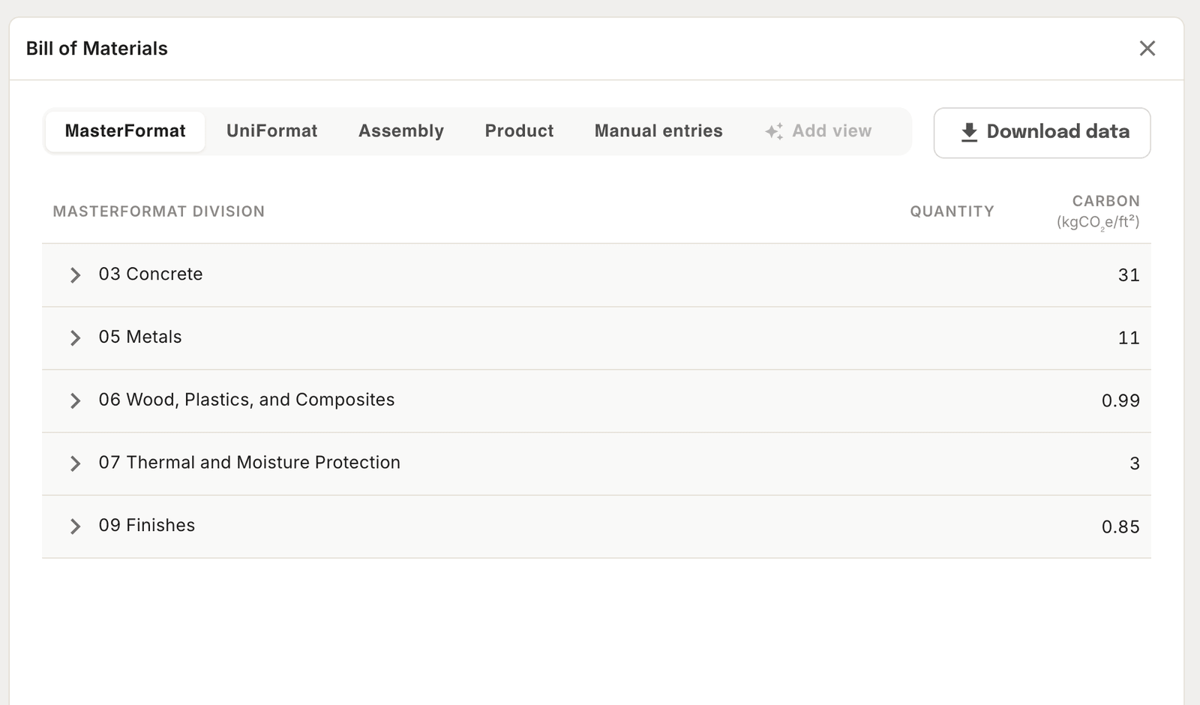
Structured material data is available immediately — organized by MasterFormat, Uniformat, or assembly. Review, refine with project-level edits when needed, and coordinate organization-wide standards with the Tangible team. Export when ready.

Use the data

Was this page helpful?